> For the complete documentation index, see [llms.txt](https://docs.oku.trade/home/llms.txt). Markdown versions of documentation pages are available by appending `.md` to page URLs; this page is available as [Markdown](https://docs.oku.trade/home/lp-manager.md).
# LP Manager
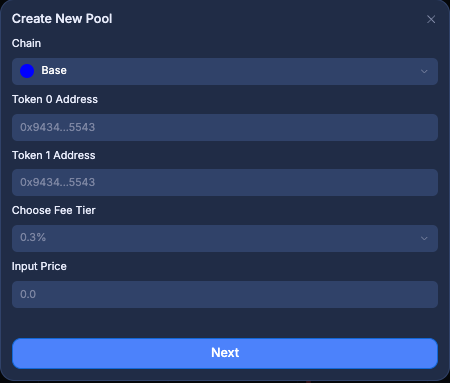
The LP Manager enables users to view their liquidity positions and create pools across any chain Oku integrates
## Create Pool
If a pool is not already created for a certain token pair, users can create a pool using the button in the top-right. Enter both token addresses and the initial price. Select a pool's fee tier from one of Uniswap v3's preset options: 0.01%, 0.05%, 0.3%, and 1%.
Next, you'll be prompted to add initial liquidity to the pool. You can input the Max and Min prices manually or choose from a preselected range.
After clicking Create Position, the Uniswap v3 pool is live!
To find the pool, search for it via pool ID in the Trade tab or visit the Analytics page.
## Creating a Position
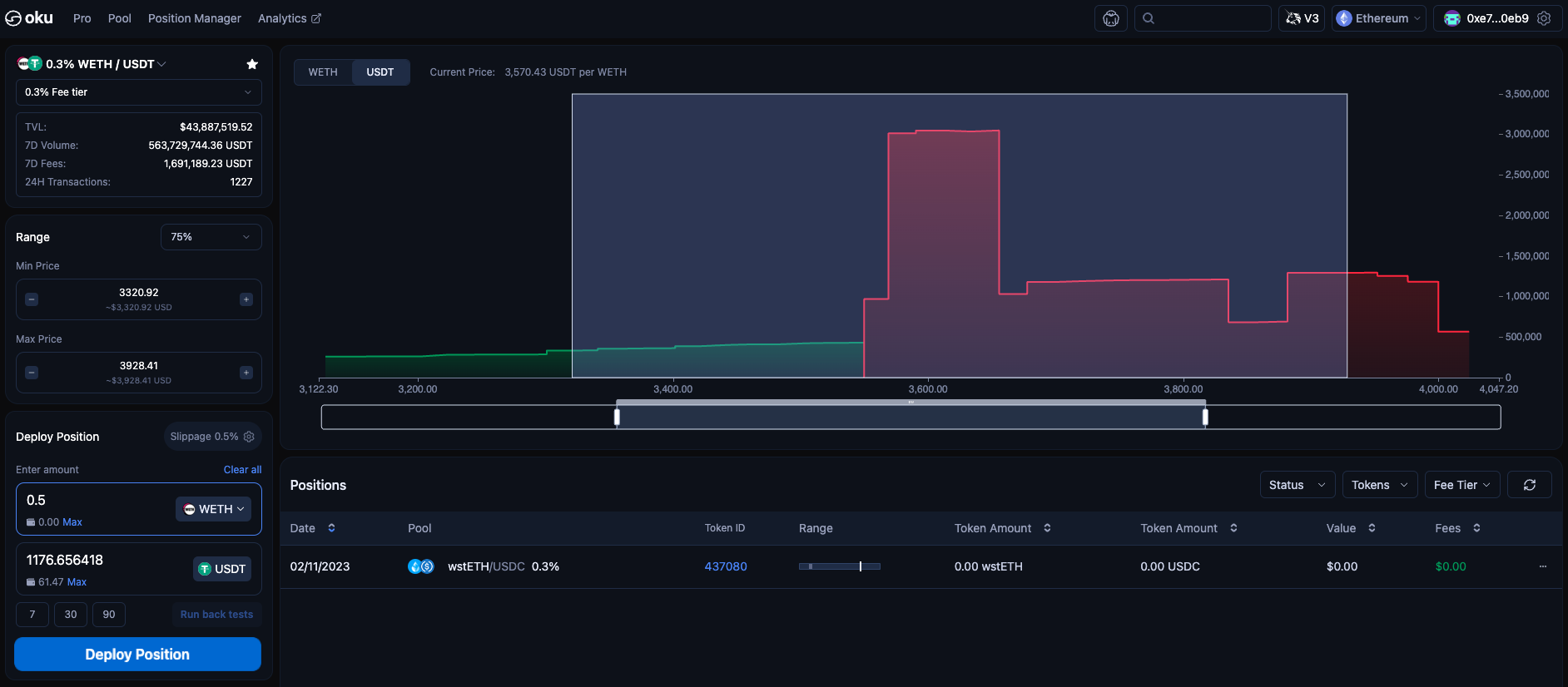
After selecting your preferred pool and fee tier on the left-side of the page, select the range for your position. This can be done in one of three ways:
1. Use your mouse to select your preferred range on the graph.
2. Use the range dropdown to select your liquidity concentration around the current price. The options are 0.1%, 1%, 12.5%, 25%, 50%, 75%, and 100%.
3. Enter your max price and min price manually in the input tabs.
Enter the desired amount of Token0 or Token1, and the other will autofill based on the availability of tokens, range and current pool price.
{% hint style="info" %}
Oku doesn’t allow users to deploy liquidity across an infinite price range (0 → ∞) like some other platforms. Why? Because providing liquidity over such a wide range is highly inefficient — it spreads capital too thin and significantly reduces the trading fees users can earn. Selecting clear upper and lower price boundaries for your liquidity ensures far better performance and higher fee returns compared to an infinite range.
{% endhint %}
You're now ready to deploy your position!
Deploying a WETH/USDT position
For clarity, selecting a 100% range won't deploy your liquidity from $0 -> $infinite as we understand this would dramatically reduce the effectiveness of your position. The 100% option sets lower and upper limit boundaries according to the current price of the asset.
As an example, if ETH/USDT is trading at $3500, choosing the 100% range deploys your liquidity between $1750 <> $5250.
For more information on [concentrated liquidity](https://docs.uniswap.org/concepts/protocol/concentrated-liquidity), visit Uniswap's documentation
## Calculating PnL
When providing liquidity to a pool, your PnL should reflect the value change of your position plus fees earned.
$$
PnL = (V\_{current} - V\_{initial}) + F
$$
Where
$$
\begin{aligned}
V\_{initial} &= token0\_{open} \times P\_{token0, current} + token1\_{open} \times P\_{token1, current} \\
V\_{current} &= token0\_{current} \times P\_{token0, current} + token1\_{current} \times P\_{token1, current} \\
F &= \text{fees accrued in both tokens at current price}
\end{aligned}
$$
**Example:** You open a position with a combined total value of $500. Six months later, the value of your position is now worth $1000. Assuming your liquidity was in range for the pool and actively being utilized, you accrued $30 of fees. The PnL of your position would be **$530.**
$$
PnL = (1000-500)+30\PnL = $530
$$
## Claiming Fees
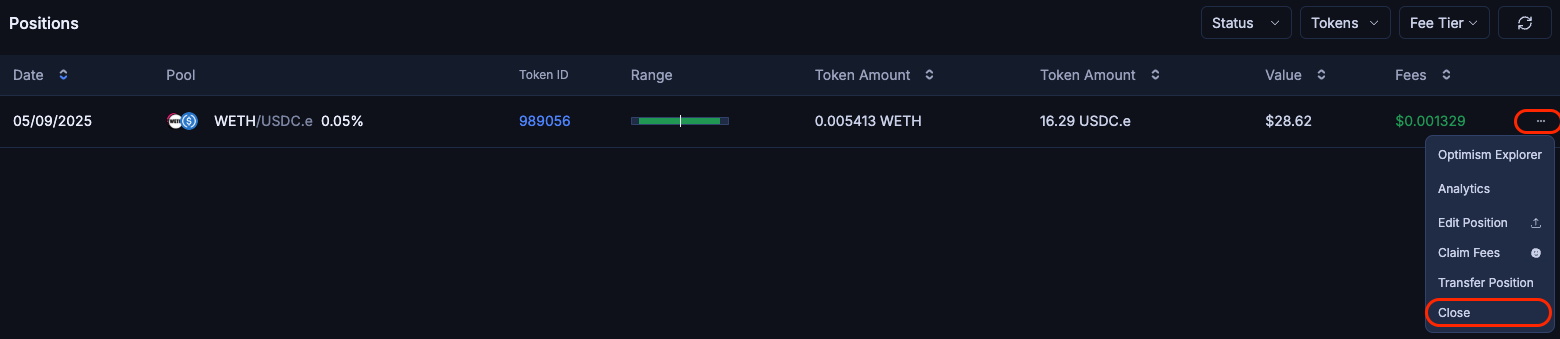
On the Oku interface, you can claim fees by clicking the three dots button on the right-side of an active position and clicking "Claim Fees."
The fees available for claiming are highlighted in green under "Fees".
## Editing Positions
By clicking the three dots button to the right-side of an active position and selecting "Edit Position," enter the amount you'd like to increase or decrease the size of your position by.
As a note, if you want to add liquidity to a new price range that isn’t part of your current position, you will need to create a new position.
## Closing Positions
After clicking the three dots button on the right-side of your position, selecting "Close" will prompt a dialogue box to appear asking if you would like to Remove All Liquidity.
## Running Backtests
The Oku Position Manager allows users to backtest their positions, providing a retroactive view of pool performance.
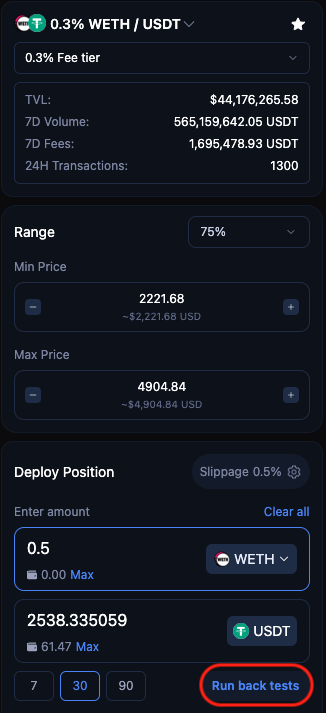
For example, Running a 30-day backtest will assume your position was placed 30 days ago and display your annualized APR, PNL, and fees in both of the provided assets,
You can try out this feature by entering all your position info, clicking either 7, 30, or 90 days, then running the test.